
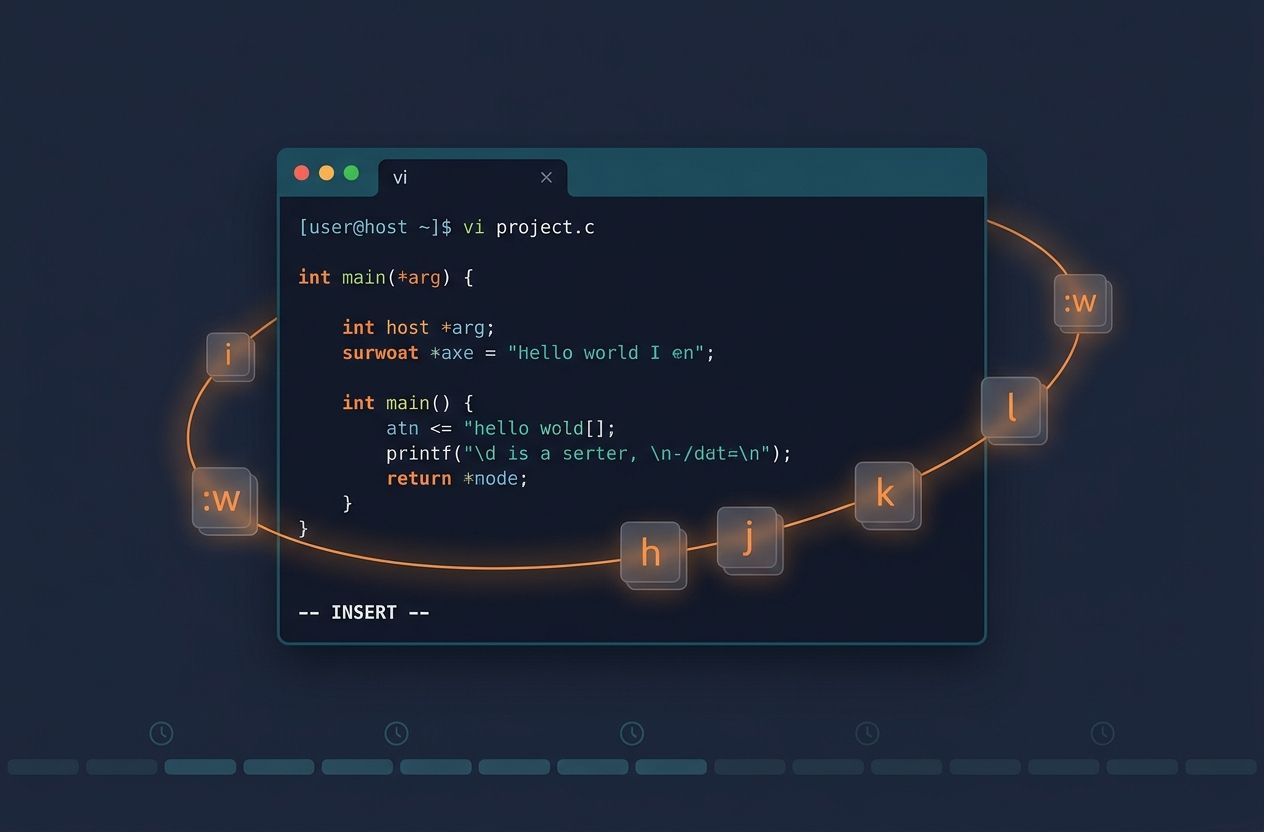
The VI editor is a compact, efficient and ubiquitous text editor for Unix and Unix-like systems. In this guide you’ll find a full exploration of VI’s origins, architectural design, operational modes, exhaustive command references, comparisons with other terminal editors and pragmatic tips to increase your editing speed and reliability directly in the shell.
Introduction
First released in the 1970s, the VI editor is the standard visual editor available on nearly every Unix system. Its lightweight design and modal operation make it uniquely suited for remote shells, system recovery and scripting workflows. This article targets system administrators, developers, students and any professional who needs to edit files in the terminal.
Brief History of VI
The VI editor was created by Bill Joy in 1976 as the visual mode for the ex line editor on BSD Unix. The name “VI” comes from the shortest unique abbreviation for “visual.” VI’s lineage traces back to ed and ex, early editors for Unix. Over decades, VI evolved into a family of implementations. Most notable is Vim (Vi IMproved), created by Bram Moolenaar in 1991 to add features while preserving VI’s modal editing model.
Key milestones:
- 1976 — Bill Joy develops VI as part of BSD.
- 1980s — VI becomes widespread on UNIX systems and de facto standard.
- 1991 — Vim is released, adding scripting, plugins and enhanced features.
- 2000s–present — Many systems ship with either a legacy VI, NVI, or a Vim compatibility binary named VI.
For official documentation and historical context, see the Vim and the POSIX editor utilities.
Why Use VI?
The VI editor remains popular for several reasons:
- Ubiquity — VI or a compatible variant is almost always installed on Unix-like systems.
- Low resource usage — tiny memory and disk footprint make it ideal for minimal environments and rescue shells.
- Modal efficiency — switching between command and insert modes enables fast, keyboard-centric editing without relying on modifiers.
- Scripting and automation — ex commands and batch editing enable automation in shell scripts.
- Availability during system recovery — useful when graphical editors are unavailable.
Modes of Operation
The modal model is the most distinctive feature of the VI editor. Understanding modes is essential to using VI productively.
Normal (Command) Mode
Default mode when VI starts. Keystrokes are interpreted as commands (navigation, deletion, copying). Press Esc to return to Normal mode. Examples:
- h, j, k, l — move left, down, up, right
- dd — delete current line
- yy — yank (copy) current line
- p — paste after cursor
Insert Mode
Used for inserting text. Enter Insert mode using i (insert before cursor), a (append after cursor), o (open new line below), among others. Exit Insert mode with Esc.
Visual Mode
Visual mode selects text. Enter with v (characterwise), V (linewise) or Ctrl+v (blockwise). After selecting, commands like d or y act on selection.
Command-line (Ex) Mode
Accessed with : to run ex commands, save files, search/replace and run external commands. Examples:
- :w — write (save) file
- :q — quit
- :%s/old/new/g — global replace
- :.!sh — run shell command and replace current line
Essential VI Commands (Cheat Sheet)
The list below focuses on commands available in classic VI and compatible in Vim. Use them frequently to build muscle memory.
Movement
- h, j, k, l — move left/down/up/right
- w, b, e — word forward, back, end
- 0 (zero) and $ — start/end of line
- G — end of file; 1G — first line; ng — go to line n
- /pattern and n/N — search forward/backward
Editing
- i, a, o — enter Insert mode
- r — replace character
- cw — change word
- cc — change entire line
- u — undo; Ctrl+r — redo
Deleting, Yanking (Copy), and Putting (Paste)
- dd — delete line
- d$ — delete to end of line
- dw — delete word
- yy — yank line
- yw — yank word
- p/P — put after/before cursor
Ex Commands (Command-line)
- :w filename — save as filename
- :wq — write and quit
- :q! — quit without saving
- :%s/foo/bar/g — replace all occurrences in file
- :/pattern and :%g/pattern/command — global commands
Working with Multiple Files and Buffers
- :e filename — edit another file
- :bn/:bp — next/previous buffer (Vim)
- :split filename and :vsplit — window splits (Vim)
Advanced Tips and Productivity Hacks
Mastering VI is not only learning commands but creating workflows that reduce friction.
Use Motions and Counts
Combine motions with operators: d3w deletes three words; y5j yanks five lines. Counts scale simple commands into powerful edits.
Learn Search and Replace with Ranges
:%s/old/new/g replaces across the whole file. Use line ranges like 10,20s/foo/bar/g to limit scope. Preview changes with c flag for confirm: :%s/foo/bar/gc.
Use Marks for Quick Navigation
Set marks with ma to mark position ‘a’ and jump back with ‘a. Useful for moving between code sections.
Read External Command Output into Buffer
In ex mode, :read !ls -la will insert command output into the buffer; handy for logs or command results.
Create and Reuse Macros
Record with qletter, perform commands, then stop with q. Replay with @letter. Very effective for repetitive edits.
Configure Your Environment
Even for VI users, creating a small initialization file (when supported) can help. For Vim users, a .vimrc centralizes mappings, indentation rules and plugins. For strict VI, consult your system’s variant docs (for example, nvi supports an exrc).
VI vs. Other Terminal Editors
Comparing VI to alternatives clarifies when to choose it.
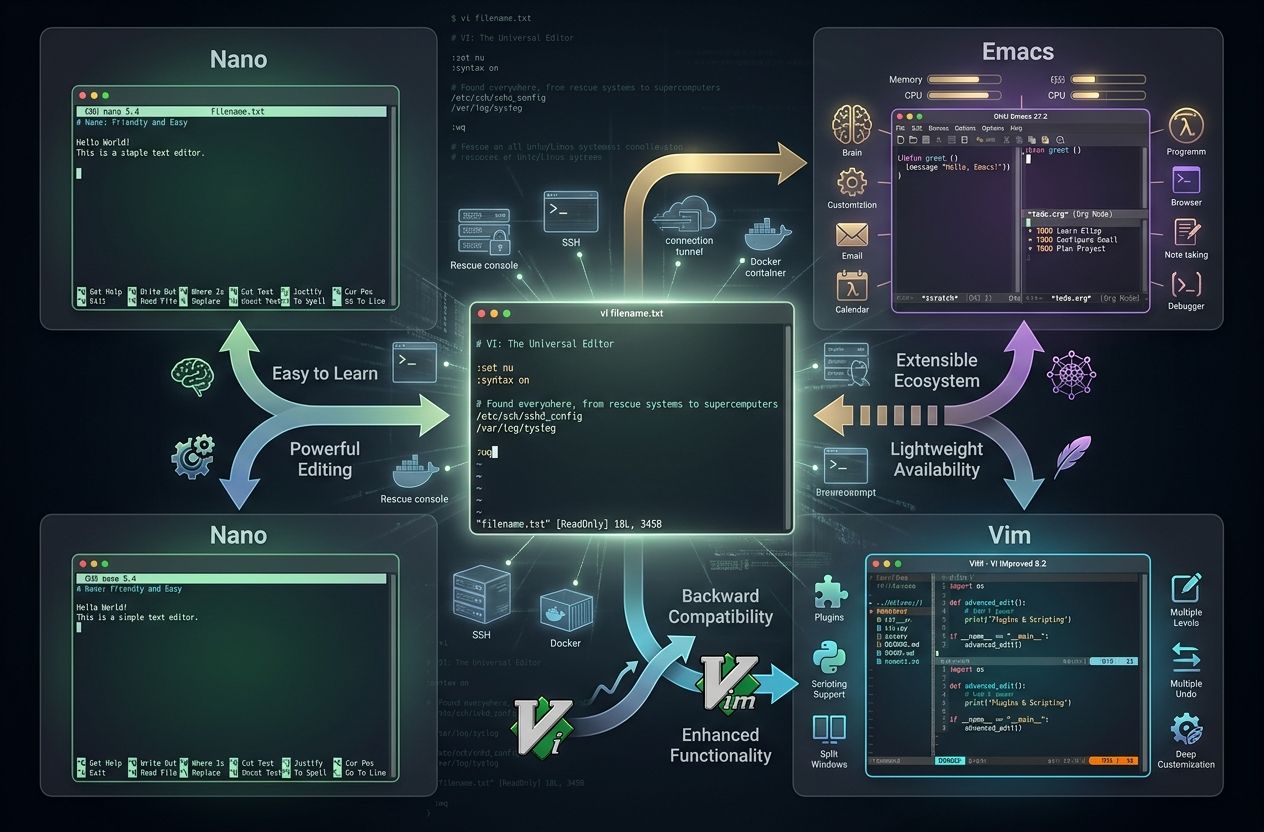
VI vs. Nano
- Nano is beginner-friendly with on-screen shortcuts, but it is less powerful for complex edits and lacks modal efficiency.
- VI has a steeper learning curve but excels at fast keyboard-driven editing and scriptable batch operations.
VI vs. Emacs
- Emacs is an extensible environment beyond a text editor; it requires more memory and a different philosophical approach.
- VI offers a smaller, composable toolset that is often available on remote systems where Emacs might not be installed.
VI vs. Vim
- Vim is backward compatible with VI but adds many enhancements: scripting (vimscript), plugins, multi-level undo, and GUI versions (gVim).
- If you’re on a modern Linux desktop, Vim is usually preferred; however, knowing classic VI commands ensures you can edit files even on minimal containers and rescue consoles.
Common Mistakes and How to Avoid Them
- Pressing random keys in Normal mode — instead learn small sets and practice in a sandbox file.
- Forgetting to save changes — use :w frequently or enable auto-write in compatible variants.
- Confusing Insert and Normal modes — watch the status (Vim provides mode indicators). Press Esc to return to Normal mode before executing commands.
Best Practices for System Administrators and Developers
- Always create backups before editing critical system configs: :w /etc/filename.bak.
- Work on copies when possible; use version control (git) for config files.
- Use readonly mode to inspect files: view filename or open VI with -R.
- Practice in a safe environment to build muscle memory for commands you use frequently.
Integrating VI into Your Workflow
VI excels when combined with Unix philosophy: small tools composed via pipes and scripts. Use ex commands to programmatically edit files in scripts, or rely on VI commands inside configuration management workflows when appropriate. For repeated operations, use macros or write short scripts that call ex with a command list.
Useful Resources and Further Reading
- Vim official site — history, documentation and downloads.
- VI on Wikipedia — historical overview and variants.
- Tutorials on VI — quick practical examples.
Conclusion
The VI editor remains an indispensable tool for anyone managing Unix/Linux systems or editing files over remote shells. While the learning curve can be steep, the payoff is significant: speed, availability and reliability. Start by memorizing basic motions and editing commands, then gradually adopt marks, macros and search/replace patterns. Over time, VI becomes a force multiplier for system administration and development tasks.
If you’re new, practice daily with short exercises: edit config files in a safe directory, write small programs in VI, and recreate common edits with macros. For more advanced use, explore Vim and its ecosystem once you’re comfortable with classic VI behavior.
Happy editing — master VI and you’ll be able to edit reliably on almost any Unix-like system.